
Notice
Recent Posts
Recent Comments
Link
오늘도 개발
CSS display 이해하기 2 (flex) 본문
0. flexbox란?
- Flexible Box Layout. 유동적이고 responsive한 레이아웃을 쉽게 구현하기 위해 고안된 레이아웃 모델.
- 부모-자식 필요 (ul과 li 태그처럼) : 부모의 display 값을 flex로 선언하면 부모는 flex container, 자식은 flex item이 됨.
- Flex container에 사용하는 프로퍼티 : display, flex-direction, flex-wrap, flex-flow, justify-content, align-content, align-items
- Flex item에 사용하는 프로퍼티 : order, flex-grow, flex-shrink, flex-basis, flex, align-self
1. Flex container(부모)에 사용하는 프로퍼티
1) display
- flexbox 사용하기 위해 선언.
- 값: flex, inline-flex
<head>
<style>
.parent {
    display: flex; /* 또는 inline-flex */
}
</style>
</head>

<body>
    <div class="parent"> <!-- flex container -->
        <div class="child"></div> <!-- flex item -->
    </div>
    <div class="parent"> <!-- flex container -->
        <div class="child"></div> <!-- flex item -->
    </div>
</body>
a. display: flex
- block 특성을 갖는 flexbox container를 만듦. (flex-item엔 영향 안미침)
child1
child2
child3
child1
child2
child3
b. display: inline-flex
- inline 특성을 갖는 flexbox container를 만듦. (flex-item엔 영향 안미침)
child1
child2
child3
child1
child2
child3
2) flex-direction
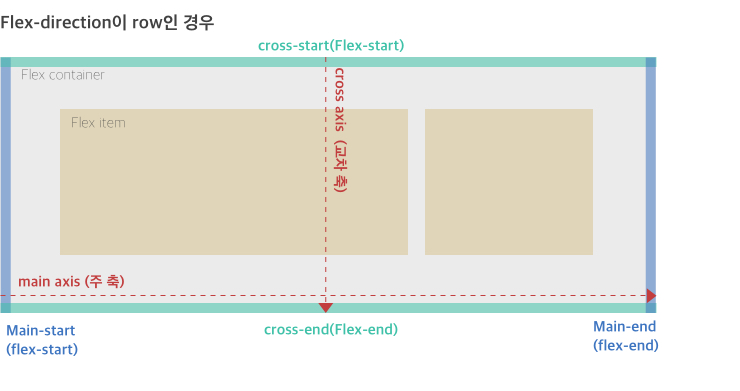
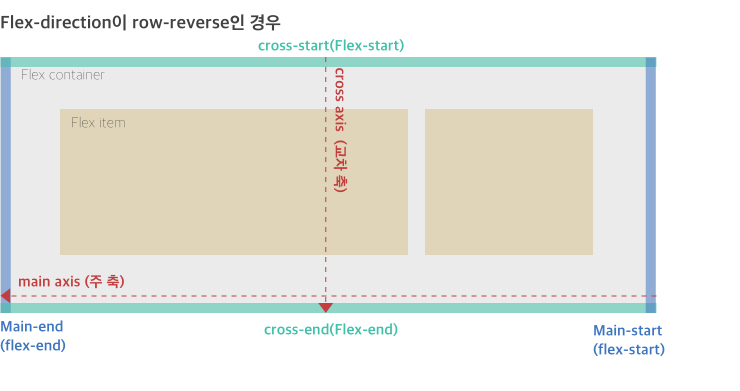
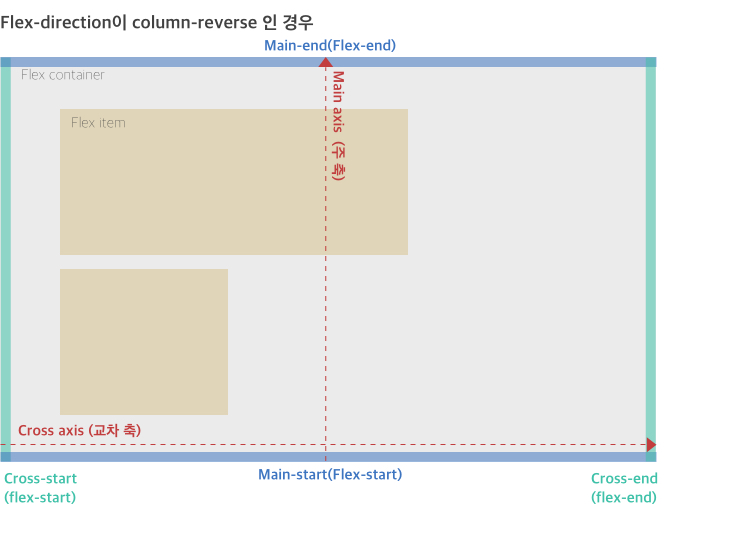
- flex item의 주 축을 결정해줌. (=flex item을 어느 방향으로 쌓을 것인지 결정해줌)
- 가로가 주축이면 가로로 쌓이고, 세로가 주축이면 세로로 쌓임.
- 값: row(기본값, 가로가 주축), row-reverse, column, column-reverse
<head>
<style>
.parent {
    display: flex;
    flex-direction: row; /* 또는 column 등 */
}
</style>
</head>

<body>
    <div class="parent"> <!-- flex container -->
        <div class="child1"></div> <!-- flex item -->
        <div class="child2"></div> <!-- flex item -->
        <div class="child3"></div> <!-- flex item -->
    </div>
</body>
a. flex-direction: row (가로 주축)
child1
child2
child3
b. flex-direction: row-reverse
child1
child2
child3
c. flex-direction: column (세로 주축)
child1
child2
child3
d. flex-direction: column-reverse
child1
child2
child3
3) flex-wrap
- flex item이 여러 개 있고 브라우저 크기가 줄어들었을 때 줄바꿈 할 것인지 말 것인지 정함.
- 새로운 줄이 생길 때마다 가상의 새로운 flex container가 생긴 것이라고 이해하면 편함. (줄에서 가장 큰 item이 가상 flex container의 크기 결정)
- 값: nowrap(기본값), wrap(줄바꿈), wrap-reverse(역방향으로 줄바꿈)
<head>
<style>
.parent {
    display: flex;
    flex-wrap: wrap; /* 또는 wrap-reverse, nowrap */
}

.child {
    width: 150px;
}

</style>
</head>

<body>
    <div class="parent"> <!-- flex container -->
        <div class="child1"></div> <!-- flex item -->
        <div class="child2"></div> <!-- flex item -->
        <div class="child3"></div> <!-- flex item -->
        <div class="child4"></div> <!-- flex item -->
    </div>
</body>
a. flex-wrap: nowrap
- 브라우저 크기를 줄이면 flex item의 width 설정 무시하고 줄여서 한 줄에 모두 넣음.
child1
child2
child3
child4
b. flex-wrap: wrap
- 브라우저 크기 줄여도 flex item의 width 설정 유지. 한 줄에 안들어가면 부모 height 늘려서 줄바꿈.
child1
child2
child3
child4
c. flex-wrap: wrap-reverse
- wrap과 같은데 브라우저 크기 줄였을 때 역방향으로 배치.
child1
child2
child3
child4
4) flex-flow
- flex-direction 프로퍼티와 flex-wrap 프로퍼티를 동시에 설정하는 프로퍼티.
- 값: ‘flex-direction 값(row, row-reverse, column, column-reverse 중 하나) 띄우고 flex-wrap 값(nowrap, wrap, wrap-reverse 중 하나)’으로 작성
.parent{
    display: flex;
    flex-flow: column wrap; /* 세로방향으로 쌓고 줄바꿈하겠다는 뜻 */
}
5) justify-content
- 주 축의 정렬 방법을 설정하는 프로퍼티.
- 값: flex-start, flex-end, center, space-between, space-around

<head>
<style>
.parent {
  display: flex;
  justify-content: flex-start; /* 주 축을 기준으로 정렬 */
  background-color: yellow;
}

.parent > div {
  background-color: white;
  width: 80px;
  margin: 5px;
}
</style>
</head>

<body>
<div class="parent">
  <div>1</div>
  <div>2</div>
  <div>3</div>
</div>
</body>
a. justify-content: flex-start
- flex-item을 주 축의 flex-start에 붙임
- 주 축이 row인 경우:
1
2
3
b. justify-content: flex-end
- flex-item을 주 축의 flex-end에 붙임
- 주 축이 row인 경우:
1
2
3
c. justify-content: center
- flex-item을 주 축의 가운데를 기준으로 정렬
- 주 축이 row인 경우:
1
2
3
d. justify-content: space-between
- 시작 item은 주 축의 flex-start에, 마지막 item은 주 축의 flex-end에 붙이고 나머지는 그 사이에 고르게 정렬
- 주 축이 row인 경우:
1
2
3
e. justify-content: space-around
- flex-item을 주 축을 따라 균일하게 정렬
- 주 축이 row인 경우:
1
2
3
6) align-items
- flex item을 각 줄마다 있는 가상의 flex container 속 교차 축에서 어떻게 배치할 지 정함.
- 값: stretch(기본값), flex-start, flex-end, center, baseline
<head>
<style>
.parent {
  display: flex;
  background-color: yellow;
  height: 200px;
  flex-flow: row wrap;
  align-items: flex-end; /* flex-start 등 적용 */
}

.parent > div {
  background-color: white;
  width: 150px;
  margin: 5px;
}
</style>
</head>

<body>
<div class="parent">
  <div style="height: 20px;">1</div>
  <div style="height: 30px;">2</div>
  <div style="height: 40px;">3</div>
  <div style="height: 20px;">4</div>
  <div style="height: 50px;">5</div>
  <div style="height: 10px;">6</div>
</div>
</body>
a. align-items: stretch
- item의 교차축 방향 값을 설정하지 않은 경우 교차축을 채우는 방향으로 늘어남.
- 교차 축이 column인 경우(flex-item의 height 설정 삭제했을 때):
1
2
3
4
b. align-items: flex-start
- item을 가상 flex container의 교차 축 flex-start에 붙임
- 교차 축이 column인 경우:
1
2
3
4
c. align-items: flex-end
- item을 가상 flex container의 교차 축 flex-end에 붙임
- 교차 축이 column인 경우:
1
2
3
4
d. align-items: center
- item을 가상 flex container의 교차 축 가운데를 기준으로 정렬
- 교차 축이 column인 경우:
1
2
3
4
e. align-items: baseline
- item을 내용물의 교차 축 baseline에 맞춰 정렬
- 교차 축이 column인 경우:
1
2
3
4
7) align-content
- 각 줄마다 있는 가상의 flex container들을 진짜 flex container 속 교차 축에서 어떻게 배치할 지 정함.
- flex item이 두 줄 이상일때 어떻게 작동할 지 정해주는 설정.
- flex-wrap이 nowrap일 때 쓸 리가 없지만 혹시 써도 작동 안함(어떤 값을 넣든 모두 align-content:stretch로 구현됨)
- flex container와 item들 간 교차 축 여백이 없으면 효과 안보임.
- 값: stretch(기본값), flex-start, flex-end, center, space-between, space-around
<head>
<style>
.parent {
  display: flex;
  background-color: yellow;
  height: 200px;
  flex-flow: row wrap;
  align-content: flex-end; /* flex-start 등 적용 */
}

.parent > div {
  background-color: white;
  width: 150px;
  margin: 5px;
}
</style>
</head>

<body>
<div class="parent">
  <div style="height: 20px;">1</div>
  <div style="height: 30px;">2</div>
  <div style="height: 40px;">3</div>
  <div style="height: 20px;">4</div>
  <div style="height: 50px;">5</div>
  <div style="height: 10px;">6</div>
</div>
</body>
a. align-content: stretch
- item의 교차축 방향 값을 설정하지 않은 경우 교차축을 채우는 방향으로 늘어남.
- 교차 축이 column인 경우(flex-item의 height 설정 삭제했을 때):
1
2
3
4
5
6
b. align-content: flex-start
- 가상 flex container들을 교차 축의 flex-start에 붙임
- 교차 축이 column인 경우:
1
2
3
4
5
6
c. align-content: flex-end
- 가상 flex container들을 교차 축의 flex-end에 붙임
- 교차 축이 column인 경우:
1
2
3
4
5
6
d. align-content: center
- 가상 flex container들을 교차 축 가운데를 기준으로 정렬
- 교차 축이 column인 경우:
1
2
3
4
5
6
e. align-content: space-between
- 첫번째 가상 flex container는 교차 축의 flex-start에, 마지막 가상 flex container은 교차 축의 flex-end에 붙이고 나머지 가상 flex container들은 그 사이에 고르게 정렬
- 교차 축이 column인 경우:
1
2
3
4
5
6
f. align-content: space-around
- 가상 flex container를 교차 축을 따라 균일하게 정렬
- 교차 축이 column인 경우:
1
2
3
4
5
6
2. Flex item(자식)에 사용하는 프로퍼티
1) flex-grow
- 같은 줄에 있는 모든 flex item을 더한것보다 flex container가 클 때 -> 남는 공간을 각 flex item에 어떤 비율로 할당할 지 정해주는 프로퍼티.
- 숫자가 클수록 더 많은 공간 할당받음.
- flex item에 width 값이 정해져있으면 효과 없음.
- 값 : 0(기본값, 기본적으로 커지지 않음), 양의 정수
<head>
<style>
.parent {
  display: flex;
  background-color: yellow;
  height: 100px;
}

.parent > div {
  background-color: white;
  margin: 5px;
}
</style>
</head>

<body>
<div class="parent">
  <div>1</div> <!-- flex-grow 기본값 0 -->
  <div style="flex-grow: 1">2</div> <!-- 남는 공간의 3분의 1 할당 -->
  <div style="flex-grow: 2">3</div> <!-- 남는 공간의 3분의 2 할당 -->
</div>
</body>
2) flex-shrink
- 같은 줄에 있는 모든 flex item을 더한것보다 flex container가 작을 때 -> 해당 flex item을 다른 flex item에 비해 얼마나 줄일 지 정해주는 프로퍼티.
- 보통 flex 프로퍼티에서 flex-grow, flex-basis와 함께 사용
- 숫자가 클수록 더 많은 너비 감소
- 해당 item에 min-width 속성이 선언되어있다면 이 값 미만으로 수축하지 않음.
- 기본값으로 min-width: auto (주축이 column인 경우 min-height: 0) 설정되어있기 때문에 컨텐츠보다 flex container 작아지면 overflow 발생. -> min-width: 0 (min-height: 0) 또는 overflow로 기본값 override 가능.
- 값 : 0(줄어들지 않음, overflow 발생 가능), 1(기본값, 기본적으로 줄어듦), 양의 정수
<head>
<style>
.parent {
  display: flex;
  background-color: yellow;
  height: 100px;
}

.parent > div {
  background-color: white;
  margin: 5px;
}
</style>
</head>

<body>
<div class="parent">

  <!-- flex-shrink 기본값 1 -->
  <div>1</div>

  <!-- 줄어들 공간의 3분의 2를 여기서 빼감 -->
  <div style="flex-shrink: 2; flex-basis: 300px;">2</div>

  <!-- 줄어들 공간의 3분의 1을 여기서 빼감 -->
  <div style="flex-shrink: 1; flex-basis: 300px;">3</div>

</div>
</body>
3) flex-basis
- flex-grow, flex-shrink로 공간 배분하기 전 기본 너비 설정하는 프로퍼티.
- 값 : auto(기본값, 내용물의 크기로 너비 설정), 단위 (px, em, cm 등)
div {
    flex-basis : 100px;
}
4) flex
- flex-grow, flex-shrink, flex-basis를 한번에 설정할 수 있는 단축 프로퍼티.
- 값 : ‘flex-grow값 flex-shrink값 flex-basis값’으로 작성, initial, none, auto
- 기본값 (아무것도 안쓰면) : 0 1 auto
- 값 하나만 쓰면 : flex-grow값 (flex-shrink기본값 1, flex-basis값 0)
- 값 두개만 쓰면 : flex-grow값 flex-shrink값 (flex-basis값 0)
ex 1) flex: 0 1 auto
- 기본값. flex: initial과 같은 값
- flex-basis값을 내용물 너비로 산정, container에 빈 공간 있어도 item 안커짐, container 줄어들면 item도 줄어듦.
Lorem ipsum dolor sit amet,
Lorem ipsum dolor sit amet, consectetur adipisicing elit
ex 2) flex: 0 0 auto
- flex: none과 같은 값
- flex-basis값을 내용물 너비로 산정, container에 빈 공간 있어도 item 안커짐, container 줄어들면 item 안 줄어들고 overflow.
Lorem ipsum dolor sit amet,
Lorem ipsum dolor sit amet, consectetur adipisicing elit
ex 3) flex: 1 1 auto
- flex: auto과 같은 값
- flex-basis값을 내용물 너비로 산정, container에 빈 공간이 있다면 늘어남, container 커지면 item도 커짐, container 줄어들면 item 줄어듦.
Lorem ipsum dolor sit amet,
Lorem ipsum dolor sit amet, consectetur adipisicing elit
ex 4) flex: 양수
- flex: 양수 1 0 과 같은 값
- flex-basis를 0으로 만들고 남는 공간을 flex-grow가 채우는 방식.
flex: 2;
flex : 1;
cf1) absolute flex
- flex-basis 값이 0인 경우
- flex-grow 값에 맞춰서 자동으로 너비 산정.
- ex) .item {flex: 1 1;}
- ex) .item {flex: 2;}
cf2) relative flex
- flex-basis 값이 0이 아닌 경우. 컨텐츠 값이나 flex-basis 값으로 너비 산정.
- ex) .item {flex-basis: 200px;}
5) order
- flex item의 순서 정해주는 프로퍼티
- 숫자 클수록 뒤로 감.
- 값 : 0(기본값), 정수
<head>
<style>
.parent {
  display: flex;
  background-color: yellow;
}

.parent > div {
  background-color: white;
  width: 80px;
  margin: 5px;
}
</style>
</head>

<body>
<div class="parent">
  <div style="order:2;">1</div>
  <div style="order:-1;">2</div>
  <div>3</div> /* order 기본값 0 적용 */
</div>
</body>
1
2
3
6) Align-self
- 교차축을 기준으로 개별 item 정렬하는 프로퍼티. (align-items 설정 override, BUT justify-content 설정은 override 못함 -> margin auto 사용)
- 값 : auto(align-items 값 상속), stretch, flex-start, flex-end, center, baseline
3. flexbox에서 auto-margin 사용하기
- align-self는 justify-content를 override 할 수 없음. 주 축에서 item하나만 따로 떼서 정렬해야 할 때 사용.
- flex item의 margin이 auto로 설정된 쪽이 있으면, flex container의 남는 공간을 가져와서 auto로 설정된 쪽에 붙임.
<head>
<style>
ul {
   padding: 0px;
   border: solid;
   display: flex;
   justify-content: flex-end;
}

li{
   list-style: none;
   flex: 0 0 auto;
   margin: 10px;
   background-color: yellow;
}

li:nth-child(1){
   margin-right: auto;
}

</style>
</head>

<body>
<ul>
<li>Logo</li>
<li>list1</li>
<li>list2</li>
<li>list3</li>
</ul>
</body>- margin auto 설정 없을 때:
- Logo
- list1
- list2
- list3
- Logo의 margin-right 값이 auto일 때:
- Logo
- list1
- list2
- list3
- Logo의 margin-right, margin-left 값이 auto일 때:
- Logo
- list1
- list2
- list3
참조 :
MDN web docs - flex
생활코딩 CSS 수업 - flex
Free Code Camp - CSS Flexbox
Naver D2 flexbox로 만들 수 있는 10가지 레이아웃
W3Schools.com - CSS Flexbox
Heropy Tech - CSS Flex(Flexible Box) 완벽 가이드
MDN web docs - CSS Flexible Box Layout
Understanding Flexbox: Everything you need to know
'웹 프로그래밍 > HTML & CSS' 카테고리의 다른 글
| CSS로 반응형 웹 구현하기 (0) | 2022.05.13 |
|---|---|
| CSS display 이해하기 3 (grid) (0) | 2022.05.13 |
| CSS display 이해하기 1 (inline, block, inline-block) (0) | 2022.05.13 |
| CSS 박스 모델 이해하기 (0) | 2022.05.12 |
| HTML로 웹 접근성을 높이는 방법 (0) | 2022.05.12 |
'웹 프로그래밍/HTML & CSS' Related Articles
more

